
Insert the New Audio Button in Google Docs
In Google Docs, you can use Gemini to listen to your Google Doc in a single click, ideal if it is a long document you want to hear back. Now, within Google Docs, you can add an audio button to your document.
We have previously looked at how to create PDF audio overviews.
Step 1 - Open your Google Doc and navigate to where you would like the audio button to go.
Step 2 - Click the 'Insert' menu and hover over the 'Audio buttons' option to select the 'Listen to tab' tool.
Insert > Audio buttons > Listen to tab

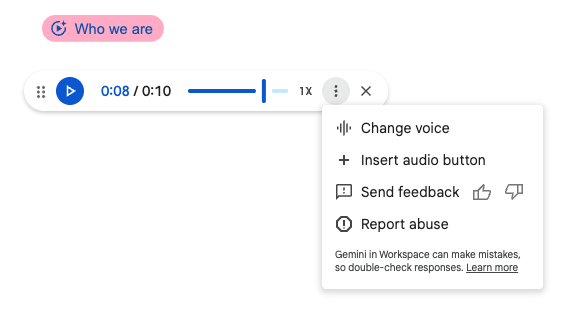
This will insert the button into your document; you can then click to listen.

If you hover over the button, you can click the pencil icon to open the Audio buttons tab where you can edit the button name, colour and size.

The audio player allows you to change the playback speed or switch between different AI voice personas. We like to use this for proofreading to easily spot any mistakes.
To learn more about Google Docs productivity features, book a live training session with Cloudshed.
