
How to Use Gemini's 'Help Me Schedule' in Gmail
Remove the back-and-forth in Gmail with the 'Help me schedule' feature.
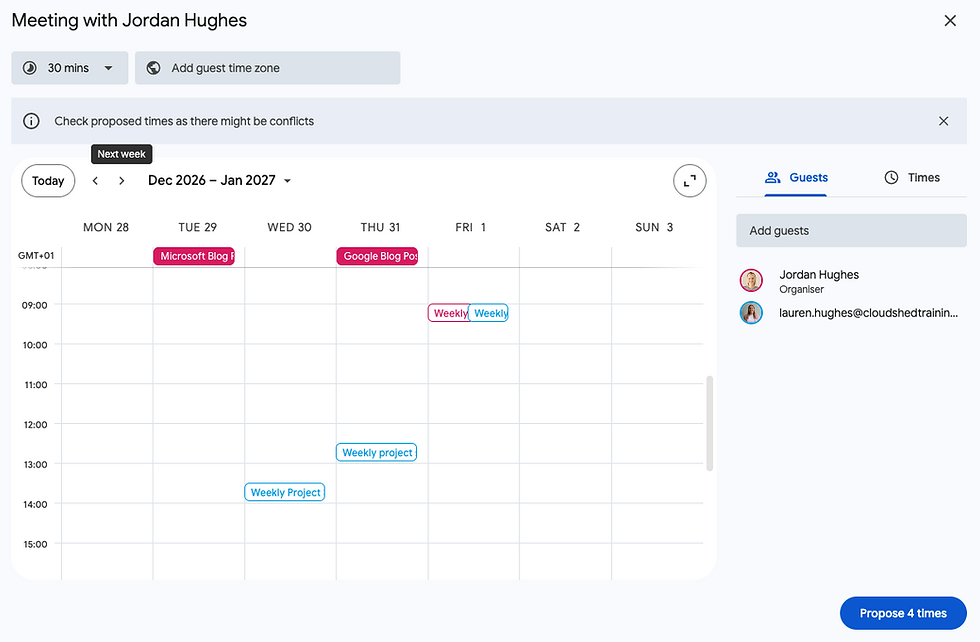
'Help me schedule' allows you to send slots you are available for a meeting to the recipient. If you have access to view their calendar, you can see the scheduling options as shown below.
Step 1 - Open Gmail and compose a message.
Along the bottom of the compose window, you will see the 'Help me schedule' icon to the right (the calendar icon with the gem).

Step 2 - You can see the options Gemini has chosen and can add your own. Once you are happy, hit 'Propose times'.
Step 3 - It will look something like this:

Then you can just send it across, no more 'are you free this time', 'no I can't do that date let me check' etc.
To learn more about Gmail, book a live training session with Cloudshed.


