How to Schedule Messages in Google Chat
We all work different hours and across various time zones. The Schedule Send feature in Google Chat enables you to work hours that suit you, or let you send that message when inspiration strikes and you don't want to forget - but doesn't impact others' downtime.
The functionality is identical whether you are messaging a single person in a Direct Message (DM) or a group inside a Space.
Step 1 - In Google Chat, open the conversation thread and type your message just as you normally would.

Step 2 - At the bottom-right corner of the chat text box, to the left of the 'Send' icon. You will see a small down arrow; click this.

Step 3 - A small pop-up window will appear, offering you some quick options based on the current time:
Tomorrow at 8:00 AM
Tomorrow at 13:00
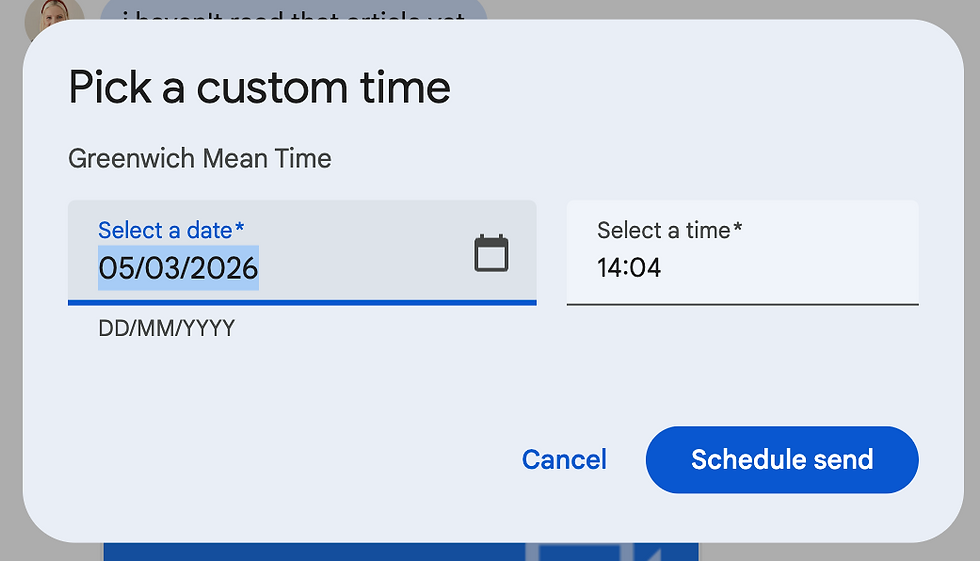
Or you can select Pick date and time. Enter the time you would like to schedule your message for and click 'Schedule send'.
Step 4 - You will see your message in the chat window, and can click 'See all scheduled messages' to view and change the messages

To learn more about Google Workspace, book one of Cloudshed's live sessions or our on-demand Google courses.