How to Hide the Guest List in Google Calendar by Default
When we create events for multiple clients, we need to hide the guest list. This prevents attendees from seeing each other's email addresses and names. This setting is useful for private meetings, client workshops or large webinars.
Google Calendar has the 'See guest list' option in the settings that allows you to easily hide the guest list from attendees.
Here is a step-by-step guide on how to do it.
To make this the default setting (so all meetings going forward will have the guest list hidden by default):
Step 1 - Access the Google Calendar settings via the settings wheel (cog)
Step 2 - Scroll to the General settings and untick the 'See guest list' option.
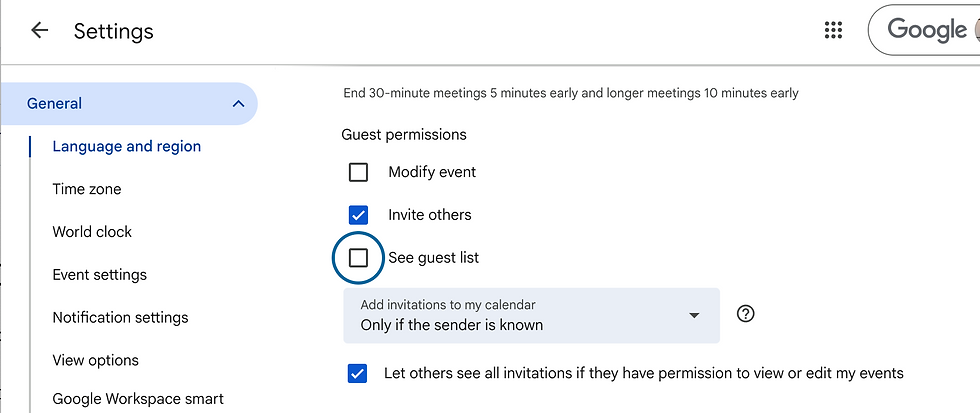
You can also change this setting on individual events, as shown below. You can untick the 'See guest list' option.
Explore our Google Calendar Training Courses or get in touch with Jordan and Lauren today to book a custom training session for your team.