
How to Fix Gmail’s New Blue Stars and Importance Markers
Well, this doesn't seem to be a popular change. Gmail has changed its importance markers to blue and its default star colour. We have to admit, it takes some getting used to.
The reason for the change is to 'meet modern accessibility standards', which is important, but not everyone is a fan.

And whilst you cannot change the colour of the importance markers in Gmail, there are some workarounds.
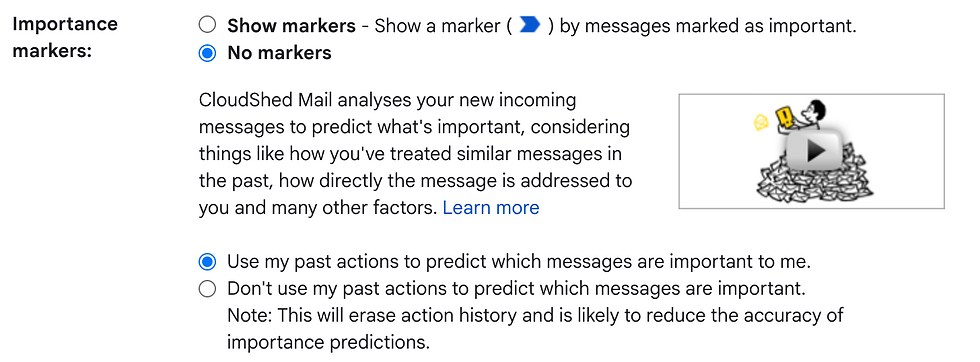
Workaround 1: You can hide the Importance markers
Step 1 - Go to the settings cog in Gmail, then 'See all settings'.
Step 2 - Click on the 'Inbox' tab.
Step 3 - Scroll to the 'Importance markers' and click 'No markers'. Don't forget to hit save.
Workaround 2: Change the default star colour back to yellow
Step 1 - Go to the settings cog in Gmail, then 'See all settings'.
Step 2 - In the 'General' tab, scroll down to the stars section.
Step 3 - Click and drag the yellow star to the front of the line, and you can drag the blue one to 'Not in use' if you don't want it at all.

To learn more about Gmail book a live training session with Cloudshed.
You can also purchase our on-demand £75 Gmail Training Course to learn more at your own pace with videos, guides, a quiz and a certificate!
