
3 Advanced Security Google Drive Settings
The great thing about sharing over attaching to an email is that you have increased control of your document. However, you might still be opening yourself up to a data leak if you don't understand the restrictive share options within Google Docs, Sheets and Slides.
Our top security tips are:
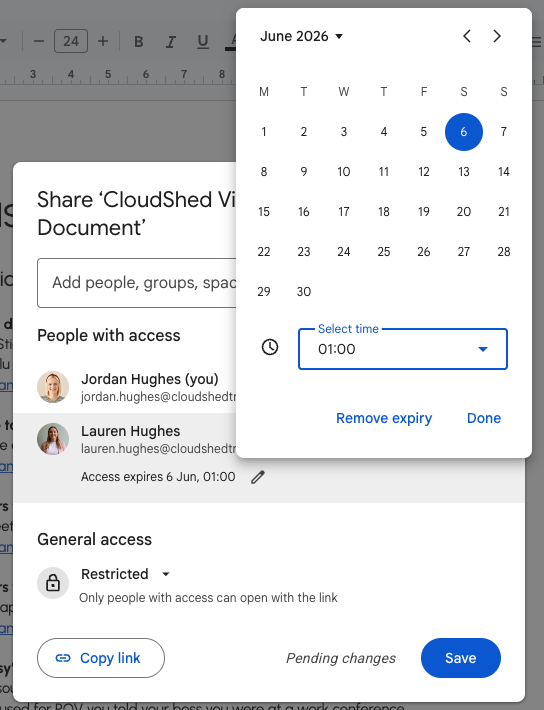
Set an Expiry Date in Google Drive 📅
Giving a freelancer or third party access to a file is common, but it is easy to forget to revoke that access. Use Access Expiry to automate this workflow and remove any security risks.
Step 1 - Open the Share menu on your Doc, (Sheet, or Slide).
Step 2 - Add the person’s email address or find an existing collaborator.
Step 3 - Click the dropdown menu next to their access level.
Add expiry.

Choose the date (the default is 30 days) and click Done.
Disable Downloading, Printing, and Copying 🔒
Even if a user only has View access, they can usually still download a PDF or copy it. You can disable these functions for your Google Drive Docs by:
Step 1 - Click Share on the file.
Step 2 - Click the Settings (gear icon) in the top right of the share box.

Step 3 - Untick 'Allow editors to change permissions and share.' (This prevents your team from accidentally widening the circle of access).
Step 4 - Untick 'Editors' and 'Commenters and viewers'
Don't use 'Anyone with the link' 🔗
It is quick and easy to use the 'anyone with the link' share setting, but this might not be the best idea with sensitive files, as you risk your data being made public or in front of the wrong audience.
To avoid this risk, always use restrictive sharing with specific people or groups.

To learn more about Google Docs productivity features, book a live training session with Cloudshed.


