
How to Use the Gemini =AI() Function in Google Sheets
With built-in Gemini capabilities in Google Sheets, you can now use the =AI() function to talk to your spreadsheet, to tell it what you want it to do, without knowing the exact formula.
An Easy Example of the =AI function in Google Sheets
It is a simple structure to remember. It begins with the =AI (
Followed by the instruction, in the example below, I have given it the simple task of addition.
=AI ("write the total"
Followed by the data set you would like Gemini to use
=AI ("write the total", H2:H28)
Don't forget to use the brackets (), the " and the comma,

Once you hit enter, you will see the option to 'Generate and insert'.

Wait whilst it generates the answer to your request.

And you should be given the answer you were looking for!

That is a basic example to show you how the =AI function in Google Sheets works and how to structure the prompt.
What Else Could You Do?
We like to use it to clean up messy spreadsheets, especially our training sign-up spreadsheets that some clients like to create themselves.
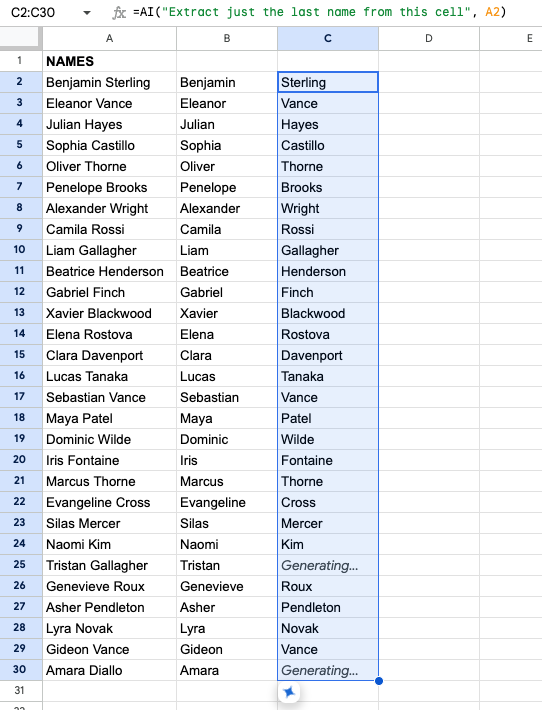
We end up with a lot of sheets with cells containing first and last names, when we need them separately, so we use Gemini to separate the names.
As shown below =AI is perfect for this. We have asked Gemini to "Extract just the last name from this cell", as we have already done the first names.

Once we hit enter, it generates the first cell, and we can drag the formula down the rest of the column to complete our task.
Other ways you could use it to clean your data:
To standardise phone numbers or locations, for example, NY, NYC or New York
Extract email addresses from cells (another one we use a lot in training sign-up)
Remove duplicates
To learn more about Google Sheets or Gemini book, CloudShed's live and interactive Google Sheets training sessions.
Or purchase our On-Demand Google Sheets or Gemini courses.

